
Host CRM Integration
Deploy the bridge application in the host CRM and run the integration session. For what to implement on the postMessage channel — message examples and RPC replies — see Host CRM Implementation.
The bridge application embeds Avaya Infinity Agent and includes Generic CRM interface (CRM-agnostic) plus the Host CRM integration you implement for your CRM platform.
Development workflow
- Open an Avaya OneCare ticket to request a CSP whitelist for your host CRM origin(s) in Keycloak (see CSP whitelist (Keycloak)).
- Embed the bridge application in the host CRM (see Embedding the bridge application).
- Implement the Host CRM integration — register a postMessage listener on channel
infinity-crm-bridge(see Host CRM Implementation). - Handle messages from the Generic CRM interface for enabled features (
voice:bind,request, and so on — see Host CRM Implementation). - Post
detachon teardown (see Host CRM Implementation — Session).
The sample app zendesk_sample-app.zip includes src/app/crm/_template/ as an optional reference — follow it if helpful when structuring your integration. See Bundled Resources.
Embedding the bridge application
The bridge application embeds Avaya Infinity Agent as a nested iframe (or pop-out window). The host CRM loads the bridge application URL provided during Infinity installation.
| Deployment | Description |
|---|---|
| Iframe embed | Bridge application loads inside the host CRM page (Host CRM integration + Generic CRM interface); the Generic CRM interface loads Agent UI in a nested iframe |
| Pop-out window | Bridge application opens in a separate window; host CRM remains the integration host |
The Generic CRM interface connects to Avaya Infinity Agent after the nested iframe loads. Allow sufficient time for Agent to initialize before the Generic CRM interface binds enabled features from agent configuration.
CSP whitelist (Keycloak)
Before Avaya Infinity Agent can load inside a new host CRM integration, the host CRM domain(s) must be added to the Content-Security-Policy (CSP) whitelist in Avaya Infinity's Keycloak configuration. Without this whitelist, the bridge application or nested Agent UI iframe may fail to load or authenticate.
Note: Open an Avaya OneCare ticket and request that your host CRM domains be added to the Keycloak CSP
frame-ancestorswhitelist. Include the origin(s) where the bridge application is embedded — use wildcard patterns where the CRM serves tenants from subdomains.
The change is applied in Keycloak Admin Console under Realm settings → Security defenses → Headers, in the Content-Security-Policy frame-ancestors directive. For example:
frame-src 'self'; frame-ancestors 'self' *.zendesk.com *.avayacloud.com; object-src 'none';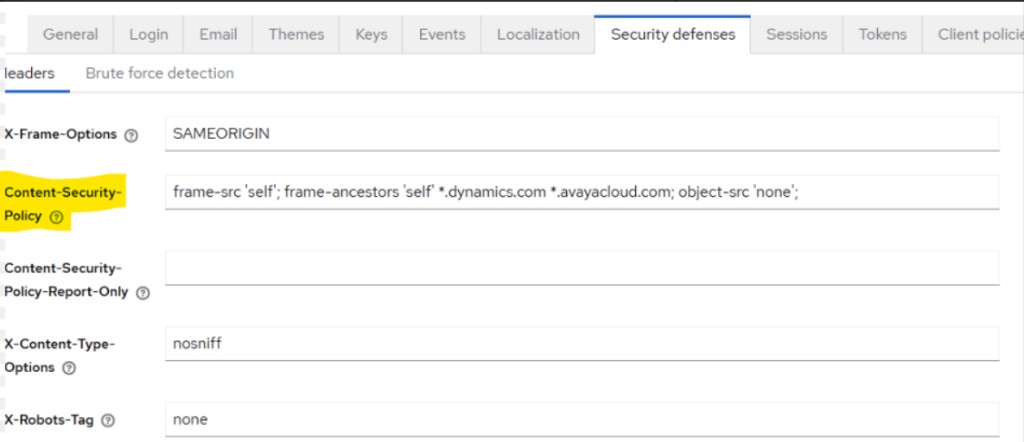
| Integration | Example domains for the CSP whitelist |
|---|---|
| Zendesk | *.zendesk.com |
| Other CRMs | Host CRM origin(s) for your deployment (for example *.your-crm.com or a fixed app URL) |
This is a platform-side step on Avaya Infinity. Plan for it early when onboarding a new CRM platform.
Integration lifecycle
Start
- Bridge application loads — Host CRM integration, Generic CRM interface, and nested Agent UI iframe.
- The Generic CRM interface connects via Element API and reads the assigned CRM Configuration.
- The Generic CRM interface binds enabled features and posts the corresponding messages to the Host CRM integration (
voice:bind,availability:bind, and so on).
Stop
Post detach on iframe unload, navigation away, or pop-out close. The Generic CRM interface may also post detach to the Host CRM integration during its own teardown.
See Host CRM Implementation — Session and Generic CRM Protocol — Session lifecycle for message formats.
What the Host CRM integration does not implement
| Component | Reason |
|---|---|
| Generic CRM interface | CRM-agnostic routing and Element API — included in the bridge application, not reimplemented per CRM |
| Element API calls | The Generic CRM interface calls Element API on the host CRM's behalf |
Platform setup guides
| Platform | Guide |
|---|---|
| Zendesk Support | Zendesk Setup — install private app, API access, agent statuses, CRM Directory contacts |
| Local development | Mock CRM Setup — run mock host CRM at https://localhost:4200/ |
Resources
Zendesk Setup | Host CRM Implementation | CRM Features | Configuration | Generic CRM Protocol
Updated 2 months ago