
Queue Metrics
Overview
The Queue Metrics API provides real-time operational metrics for queues in Avaya Infinity. Use this API to retrieve current agent availability, engagement wait counts, and queue occupancy for a specific queue and communication channel.
This API is designed for real-time routing decisions. For example, checking whether available agents exist before presenting a chat option to a website visitor, or triggering overflow routing when a queue reaches capacity.
This guide covers everything you need to start making successful API calls: obtaining credentials, locating queue IDs and tag IDs in the portal, understanding the response fields, and building real-world integrations.
API Reference: Query Queue Metrics →
Prerequisites
Before making your first call you will need:
- Access to the Avaya Infinity Admin portal
- A
client_idandclient_secretwith theQUEUE_METRICSscope (contact Avaya to request credentials) - The queue ID of the queue you want to query (see Finding Your Queue ID below)
- Your customer subdomain (see Finding Your Customer Subdomain below)
Finding Your Customer Subdomain
Your subdomain is part of your Avaya Infinity portal URL and is required in every API call.
Example: If your portal URL is:
https://core.avaya1234.ec.avayacloud.com/app/core-config-ui/Your subdomain is: avaya1234
All Queue Metrics API requests use this base URL format:
https://core.{customerId}.ec.avayacloud.com/api/matching-extensions/v1/queue-metricsAuthentication
The Queue Metrics API uses OAuth 2.0 Bearer token authentication via the client credentials flow.
Step 1: Request Credentials
Contact Avaya Support to request a client_id and client_secret provisioned with the QUEUE_METRICS scope.
Step 2: Generate an Access Token
Use your credentials to request a Bearer token from the token endpoint:
curl -X POST https://core.avaya1234.ec.avayacloud.com/auth/realms/avaya/protocol/openid-connect/token \
  -H 'Content-Type: application/x-www-form-urlencoded' \
  -d 'grant_type=client_credentials&client_id=<your_client_id>&client_secret=<your_client_secret>&scope=QUEUE_METRICS'
A successful response returns an access_token:
{
  "access_token": "eyJhbGciOiJSUzI1...",
  "expires_in": 900,
  "token_type": "bearer",
  "scope": "QUEUE_METRICS"
}
Step 3: Include the Token in Requests
Include the token in the Authorization header of every API request:
Authorization: Bearer <access_token>Note: Tokens expire after 900 seconds (15 minutes). Request a new token before making further calls if yours has expired.
Security: Never expose your
client_secretor Bearer token in client-side code or public repositories. All calls to this API should be made server-side.
For full authentication details, see How to Authenticate with Avaya Infinity APIs.
Finding Your Queue ID
Queue IDs are system-generated identifiers. They are distinct from the queue's display name and always begin with 003.
To find a queue ID in the Avaya Infinity portal:
- Log in to Avaya Infinity Admin
- Navigate to Queues in the left sidebar
- Browse to the folder containing your queue
- The ID column in the queue list shows the queue ID directly. Copy it from the table.
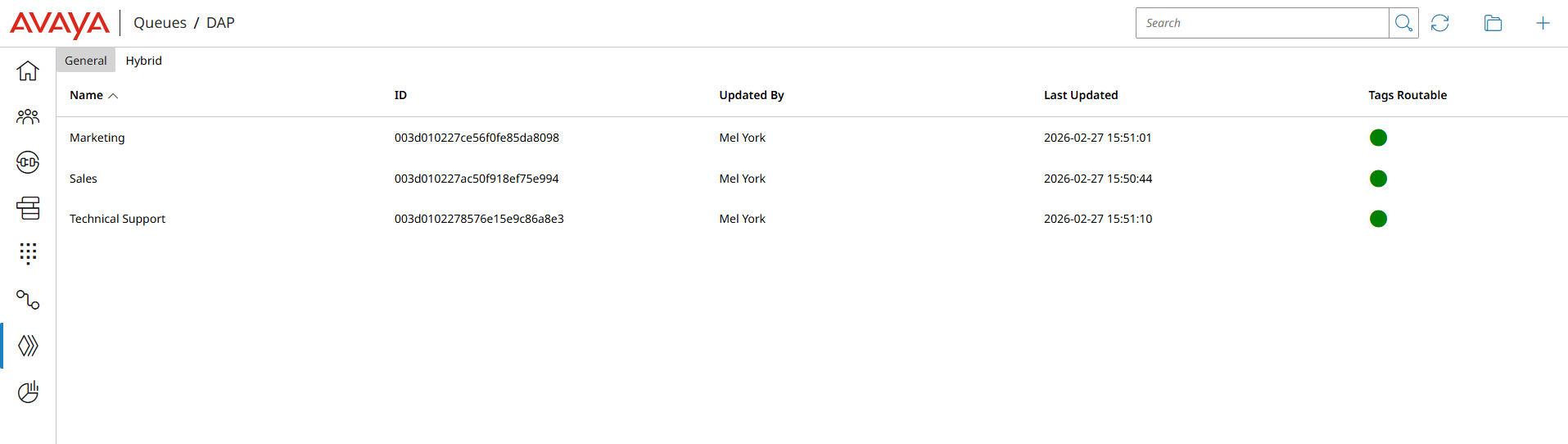
In the example above, the queue IDs are:
| Queue Name | Queue ID |
|---|---|
| Marketing | 003d010227ce56f0fe85da8098 |
| Sales | 003d010227ac50f918ef75e994 |
| Technical Support | 003d0102278576e15e9c86a8e3 |
Queue IDs can also be retrieved programmatically via the Queue Management API.
Finding Your Tag ID
Tag IDs are used to filter metrics to a specific subset of agents and engagements within a queue. Tag IDs always begin with 006.
To find a tag ID in the Avaya Infinity portal:
- Log in to Avaya Infinity Admin
- Navigate to Tags in the left sidebar
- Click the edit (pencil) icon on the tag you want to use
- Look at the browser URL bar - the tag ID appears at the end of the URL after
/tags/root/
Example URL:
https://core.avaya1234.ec.avayacloud.com/app/core-config-ui/queues/tags/root/006d01020512453d3da3987e5eThe tag ID in this example is: 006d01020512453d3da3987e5e
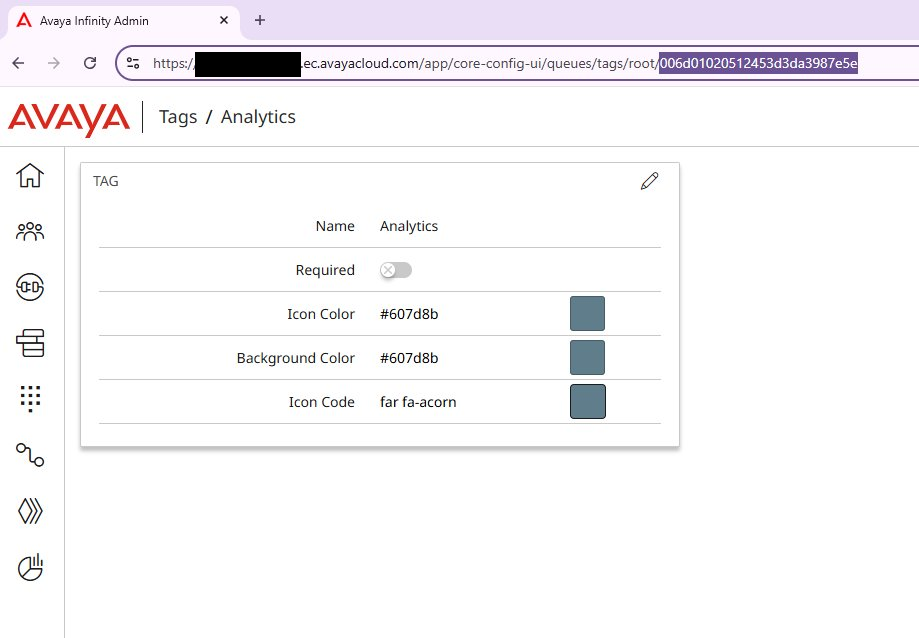
Note: The tag ID only appears in the URL when you are in edit mode for a tag. Do not confuse this with folder IDs, which also appear in URLs when browsing folders that contain tags - folder IDs begin with
073.
Making Your First API Call
With your subdomain, Bearer token, and queue ID in hand, you are ready to make your first call.
Basic Request
curl -X POST https://core.avaya1234.ec.avayacloud.com/api/matching-extensions/v1/queue-metrics \
  -H 'Authorization: Bearer <your_access_token>' \
  -H 'Content-Type: application/json' \
  -d '{
    "commType": "phone",
    "queueId": "003d010227ce56f0fe85da8098"
  }'
Request Body Fields
| Field | Type | Required | Description |
|---|---|---|---|
commType | string | ✅ | The communication channel to query. Valid values: voice, chat, email, messaging. Must match an active channel configured on the queue. |
queueId | string | ✅ | The unique identifier of the queue (begins with 003). |
tags | string | ❌ | One or more tag IDs to filter metrics. See Filtering by Tags. |
Example Response
{
  "type": "attribute",
  "channel": "voice",
  "accountId": "1234567890",
  "agentStaffedCount": 40,
  "agentReadyCount": 8,
  "agentBusyCount": 22,
  "waitingEngagementCount": 31,
  "processingEngagementCount": 16,
  "queueOccupancy": 0.0076899347,
  "oldestEngagementWaiting": "2025-11-03T13:26:24Z",
  "timestamp": "2025-11-03T13:26:24Z",
  "attributes": [
    "queue:003d010227ce56f0fe85da8098"
  ]
}
Understanding the Response Fields
All metrics reflect the state of the queue at the moment the request was made. This is a real-time snapshot, not a historical or averaged value.
| Field | Description |
|---|---|
type | Internal query type identifier. For queue-based queries this will always be "attribute". |
channel | The communication channel the metrics apply to, matching the commType in your request. |
accountId | Your account/tenant identifier, derived from the Bearer token. |
agentStaffedCount | Total number of agents currently logged in and assigned to this queue. |
agentReadyCount | Number of logged-in agents, with an available capacity slot on the queried channel, able to pick up a new interaction. |
agentBusyCount | Number of logged-in agents who are at full capacity on the queried channel with no available slots remaining. |
waitingEngagementCount | Number of engagements currently waiting in queue to be assigned to an agent. |
processingEngagementCount | Number of engagements currently being handled by an agent. |
queueOccupancy | Queue occupancy as a decimal between 0 and 1 (e.g. 0.75 = 75% occupied). Returns 0 when no engagements are waiting or in progress. |
oldestEngagementWaiting | ISO 8601 timestamp of the oldest engagement currently waiting in queue. Returns an empty string "" if no engagements are waiting. |
timestamp | ISO 8601 timestamp indicating when this metrics snapshot was collected. |
attributes | The attribute values used to resolve these metrics, in queue:{queueId} and tag:{tagId} format. |
Understanding Agent Availability Counts
Agent availability is measured per channel based on each agent's configured capacity (multiplicity) for that channel. The commType in your request determines which channel's availability is returned.
Example: Chat with multiplicity 3:
An agent configured to handle up to 3 concurrent chats:
| Active Chats | Counted as Ready | Counted as Busy |
|---|---|---|
| 0, 1, or 2 | ✅ Yes - slot available | No |
| 3 (at capacity) | No | ✅ Yes - no slots remaining |
agentReadyCount is therefore the primary field to check when deciding whether to route an engagement or surface a contact option to a customer. It directly reflects how many agents can immediately take a new interaction on the queried channel.
Filtering by Tags
The optional tags field allows you to scope metrics to a specific subset of agents and engagements within the queue that match one or more tags.
When tags are provided, only engagements and agents matching both the specified queue and the specified tags are included in the returned metrics.
Supported formats:
Single tag:         "006d0110160d0bea955297d80e"
Comma-separated:    "006d0110160d0bea955297d80e, 006d01101602a2f055c1a03dcb"
Array notation:     "[006d0110160d0bea955297d80e, 006d01101602a2f055c1a03dcb]"
Example request with tags:
curl -X POST https://core.avaya1234.ec.avayacloud.com/api/matching-extensions/v1/queue-metrics \
  -H 'Authorization: Bearer <your_access_token>' \
  -H 'Content-Type: application/json' \
  -d '{
    "commType": "chat",
    "queueId": "003d010227ce56f0fe85da8098",
    "tags": "006d01020512453d3da3987e5e, 006d01101602a2f055c1a03dcb"
  }'
The attributes array in the response will reflect both the queue and tag filters applied:
"attributes": [
  "queue:003d010227ce56f0fe85da8098",
  "tag:006d01020512453d3da3987e5e",
  "tag:006d01101602a2f055c1a03dcb"
]
Integration Patterns
Pattern 1: Server-Side Agent Availability Check (Website Chat Element)
The most common use case is a backend service that checks agent availability before surfacing a chat option to a website visitor. All calls are made server-side. The client-side element never directly calls the Queue Metrics API or handles credentials.
Flow:
- Visitor loads a page with a potential chat element
- Your backend calls the Queue Metrics API for the relevant queue and
commType: "chat" - If
agentReadyCount > 0, your backend tells the frontend to show the chat button - If
agentReadyCount === 0, the chat option is hidden or replaced with a fallback (e.g. a contact form or callback option)
curl:
curl -X POST https://core.avaya1234.ec.avayacloud.com/api/matching-extensions/v1/queue-metrics \
  -H 'Authorization: Bearer <your_access_token>' \
  -H 'Content-Type: application/json' \
  -d '{
    "commType": "chat",
    "queueId": "003d010227ce56f0fe85da8098"
  }'
Node.js:
const axios = require('axios');

async function getQueueMetrics(accessToken, queueId, commType) {
  const response = await axios.post(
    'https://core.avaya1234.ec.avayacloud.com/api/matching-extensions/v1/queue-metrics',
    { commType, queueId },
    {
      headers: {
        'Authorization': `Bearer ${accessToken}`,
        'Content-Type': 'application/json'
      }
    }
  );
  return response.data;
}

async function isChatAvailable(accessToken, queueId) {
  const metrics = await getQueueMetrics(accessToken, queueId, 'chat');
  return metrics.agentReadyCount > 0;
}

// Usage
const available = await isChatAvailable('<your_access_token>', '003d010227ce56f0fe85da8098');
console.log(available ? 'Show chat widget' : 'Hide chat element, show fallback');
Python:
import requests

def get_queue_metrics(access_token, queue_id, comm_type):
    url = 'https://core.avaya1234.ec.avayacloud.com/api/matching-extensions/v1/queue-metrics'
    headers = {
        'Authorization': f'Bearer {access_token}',
        'Content-Type': 'application/json'
    }
    payload = {'commType': comm_type, 'queueId': queue_id}
    response = requests.post(url, json=payload, headers=headers)
    response.raise_for_status()
    return response.json()

def is_chat_available(access_token, queue_id):
    metrics = get_queue_metrics(access_token, queue_id, 'chat')
    return metrics['agentReadyCount'] > 0

# Usage
available = is_chat_available('<your_access_token>', '003d010227ce56f0fe85da8098')
print('Show chat widget' if available else 'Hide chat element, show fallback')
Pattern 2: Workflow-Based Overflow Routing
The Queue Metrics API can be called from within an Avaya Infinity workflow to make real-time routing decisions at the point an engagement arrives. If no ready agents are available on the primary queue, the workflow can route to an overflow queue, trigger a callback, or take another alternative action.
Flow:
- An engagement arrives and enters a workflow
- The workflow calls the Queue Metrics API to check
agentReadyCounton the primary queue - If
agentReadyCount > 0, the engagement is routed to the primary queue - If
agentReadyCount === 0, the workflow routes to an overflow queue or alternative action
curl:
curl -X POST https://core.avaya1234.ec.avayacloud.com/api/matching-extensions/v1/queue-metrics \
  -H 'Authorization: Bearer <your_access_token>' \
  -H 'Content-Type: application/json' \
  -d '{
    "commType": "phone",
    "queueId": "003d010227ce56f0fe85da8098"
  }'
Node.js:
const axios = require('axios');

async function routeEngagement(accessToken, primaryQueueId, overflowQueueId, commType) {
  const response = await axios.post(
    'https://core.avaya1234.ec.avayacloud.com/api/matching-extensions/v1/queue-metrics',
    { commType, queueId: primaryQueueId },
    {
      headers: {
        'Authorization': `Bearer ${accessToken}`,
        'Content-Type': 'application/json'
      }
    }
  );

  const { agentReadyCount, waitingEngagementCount } = response.data;

  if (agentReadyCount > 0) {
    console.log(`Routing to primary queue: ${agentReadyCount} agents ready`);
    return { queue: primaryQueueId, reason: 'agents_available' };
  } else {
    console.log(`No ready agents (${waitingEngagementCount} waiting) - routing to overflow`);
    return { queue: overflowQueueId, reason: 'overflow' };
  }
}

// Usage
const decision = await routeEngagement(
  '<your_access_token>',
  '003d010227ce56f0fe85da8098',  // primary queue
  '003d010227ac50f918ef75e994',  // overflow queue
  'phone'
);
console.log(`Route to: ${decision.queue} (${decision.reason})`);
Python:
import requests

def route_engagement(access_token, primary_queue_id, overflow_queue_id, comm_type):
    url = 'https://core.avaya1234.ec.avayacloud.com/api/matching-extensions/v1/queue-metrics'
    headers = {
        'Authorization': f'Bearer {access_token}',
        'Content-Type': 'application/json'
    }
    payload = {'commType': comm_type, 'queueId': primary_queue_id}

    response = requests.post(url, json=payload, headers=headers)
    response.raise_for_status()
    metrics = response.json()

    agent_ready = metrics['agentReadyCount']
    waiting = metrics['waitingEngagementCount']

    if agent_ready > 0:
        print(f'Routing to primary queue - {agent_ready} agents ready')
        return {'queue': primary_queue_id, 'reason': 'agents_available'}
    else:
        print(f'No ready agents ({waiting} waiting) - routing to overflow')
        return {'queue': overflow_queue_id, 'reason': 'overflow'}

# Usage
decision = route_engagement(
    '<your_access_token>',
    '003d010227ce56f0fe85da8098',  # primary queue
    '003d010227ac50f918ef75e994',  # overflow queue
    'phone'
)
print(f"Route to: {decision['queue']} ({decision['reason']})")
Common Scenarios
Empty Queue
When a queue has no engagements waiting, the response will show zeroed-out wait metrics:
{
  "agentStaffedCount": 10,
  "agentReadyCount": 10,
  "agentBusyCount": 0,
  "waitingEngagementCount": 0,
  "processingEngagementCount": 0,
  "queueOccupancy": 0,
  "oldestEngagementWaiting": ""
}
Unrecognized Queue ID
If you provide a queue ID that does not exist or is not accessible under your account, the API returns a 200 response with all metrics zeroed out - not a 404. If you receive unexpected all-zero results, verify the queue ID against the portal or the Queue Management API.
Unconfigured Channel
If the commType you specify is not an active channel configured on the target queue, the API returns a 404 response. Verify that the channel is enabled on the queue in the Avaya Infinity Admin portal before querying it.
Rate Limiting
This API is rate limited to 600 requests per minute per client credential.
For the primary use cases - a single availability check before presenting a chat widget, or a routing decision within a workflow - rate limiting is unlikely to be a concern, as each interaction triggers at most one or a small number of calls.
If your integration requires querying multiple queues in a loop, adjust your polling interval to stay within the limit:
minimum interval (seconds) = number of queues / 10| Queues Being Polled | Minimum Safe Interval |
|---|---|
| 1–10 | 1 second |
| 30 | 3 seconds |
| 60 | 6 seconds |
| 100 | 10 seconds |
Note: This API is not designed for high-frequency polling across many queues. If your use case requires monitoring a large number of queues in real time, consider whether an event-based approach using the Notifications API better fits your needs.
Error Reference
| Status | Meaning | What to do |
|---|---|---|
200 (zeroed metrics) | Queue ID not found or not accessible | Verify the queue ID exists in your portal or via the Queue Management API |
302 | Missing or expired Bearer token | Re-authenticate and obtain a new access token |
400 | Missing or malformed required field | Check that commType and queueId are present and correctly formatted |
403 | Valid token but insufficient scope | Confirm your credentials were provisioned with the QUEUE_METRICS scope |
404 | Channel not configured on queue | Verify the commType is an active channel on the target queue |
500 | Internal server error | Retry after a short delay; contact Avaya Support if the issue persists |
503 | Service temporarily unavailable | Retry after a short delay |
Related Resources
Updated 20 days ago